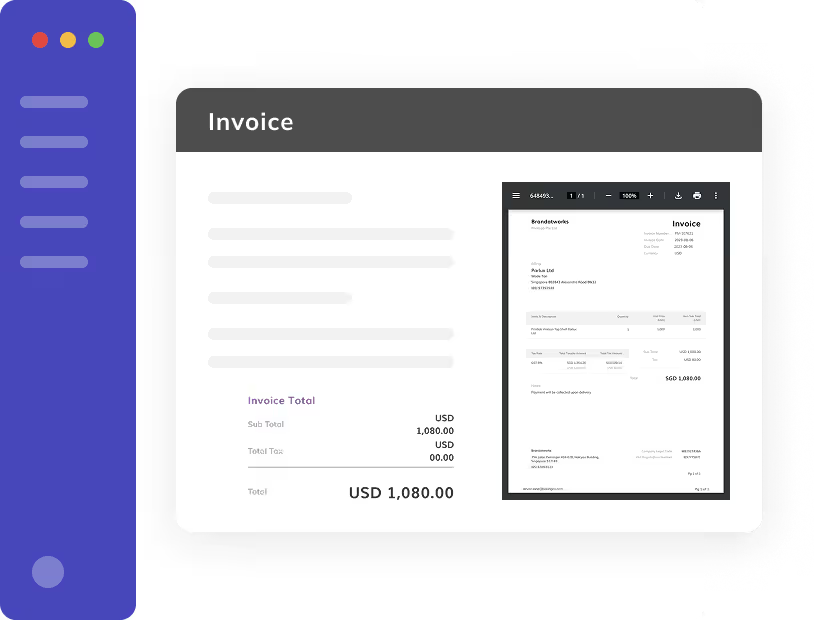
Creating a Customer Invoice Manually
- On the navigation bar, select the Sale tab and Customer Invoice menu.
- On the page, to the right, please click the New Customer Invoice button.
- You can attach document by clicking on the paper clip icon on the right.
- Complete the form and click Save as draft or Approve.
*Note: Approved invoice cannot be edited or deleted
Generate Invoice from PDF or Image
- On the navigation bar, select the Document tab.
- Click on Upload on the right to upload PDF or image file(s).
- Wait for the file to be processed and once it is ready, click on the ellipses and select create invoice.
- The AI will read from the document and automatically fill in the information.
*Note: Review is still needed to make sure all the information input is correct - The posting account is automatically selected based on the previous account selected. No account will be selected if it is the first invoice created for the vendor.
Recording a Payment
- On the navigation bar, select the Sale tab and Customer Payment menu.
- On the page, to the right, please click the New Customer Payment button.
- Fill up the payment information and click Save & add invoice.
- Select an invoice or multiple invoices to add in the payment.
- Payment amount for each invoice can be edited.
- Click on Save as draft or Approve.
*Note: Approved payment cannot be edited or deleted
Adding Adjustment to a Payment
To add an adjustment to the payment,
- You can only add an adjustment if the amount applied to the invoice is not the full amount.
- Click on the ellipses and select add adjustment.
- The balance amount will be applied to the adjustment.
Article Information
✍🏻 Written by: Eleven Support Team
🔎 Reviewed by: Noe Saglio
🗓️ Last Updated: November 12, 2025